
Open a Windows desktop, access a Linux machine over SSH, and work on a VNC session using only the browser: that is the proposal of Apache Guacamole. It centralizes remote access in a web portal, without requiring a specific client on the computer of whoever is accessing.
In this guide, we will understand the architecture, set up a lab with Docker Compose and PostgreSQL, and discuss local authentication, LDAP/Active Directory, SSO, MFA, security, and operations. The focus is to build a comprehensible foundation before putting an administrative gateway on the network.
What is Apache Guacamole — and what it isn't
The Apache Guacamole is a remote access gateway clientless, with support for protocols such as RDP, VNC, and SSH. “Clientless” means the user uses a modern browser: on the server, there are still components, configuration, and dependencies. The project is open source under Apache License 2.0.
It does not create virtual machines, does not install a desktop on the server, and does not turn any machine into an accessible destination. The remote service must already exist, be configured, and be reachable by the gateway. On a Linux system without a graphical environment, SSH remains a terminal, not a magic desktop inside the page.
This differentiates it from phpVirtualBox: that panel manages VirtualBox VMs; Guacamole provides access to remote sessions. These are tools that can address complementary needs.
Which version to use as a reference
In the document review carried out on 7 of October 2026, the site and the official releases file showed Guacamole 1.6.0, released on 22 June 2025, as the current version. The tutorial pins this version in both project images; it does not use latest.
The release notes for 1.6.0 highlight rendering improvements, Docker support, and bulk connection import, among other changes. Before repeating the procedure in the future, also consult the security advisories and the documentation corresponding to the chosen version.
The web application has a Java backend and delivers the JavaScript client to the browser. Session traffic uses the Guacamole protocol; the guacd and its protocol components bridge to the remote targets. It is not the browser speaking RDP directly to Windows. Reference: official architecture.
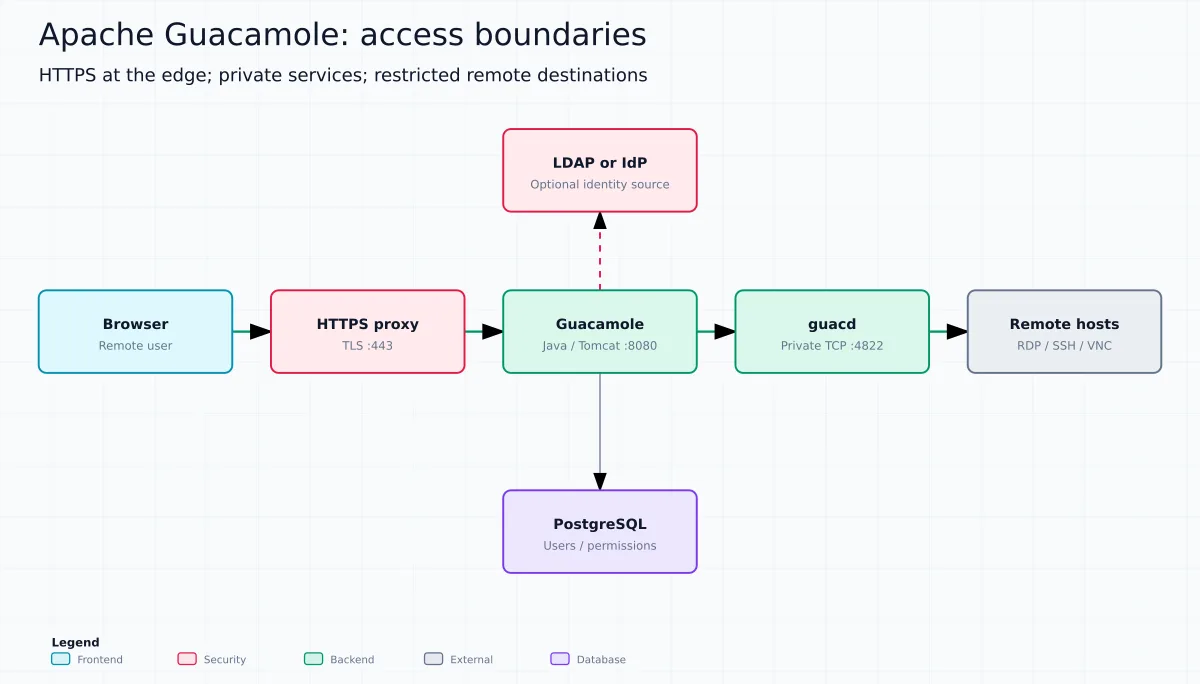
My design recommendation is to separate two questions: who can enter the portal and which targets the gateway can reach. The firewall should restrict the second independently of the first. An authenticated portal does not justify opening the entire internal network to the connection process.
Guacd does not authenticate the portal's users. Whoever can reach your door may try to use it as a bridge to other systems. Do not publish it 4822 on the Internet nor hand it over to user networks. Application authentication does not protect a path that bypasses it.
The database does not transport the desktop image: it stores administrative data according to the extension used. The introduction documentation also helps distinguish the ready-made application from the APIs available for custom integrations.
When it makes sense to use it
- Linux and Windows labs accessed from different computers.
- Teams that need a central point for administrative connections.
- Training environments with targets and permissions defined per user.
- Remote support for systems already reachable by the gateway infrastructure.
The expected gain is reducing the variety of clients at the endpoint and organizing access. This does not eliminate the need for a credential policy, monitoring, and segmentation. There is also no universal number of sessions per server: resolution, protocol, graphical activity, and latency change consumption. Measure your scenario before sizing production.
Docker lab: scope and prerequisites
You need Docker Engine, Docker Compose, OpenSSL, and access to the image registry. The example uses three services: PostgreSQL, guacd and the Guacamole application. Only the portal is published, and only on the host loopback. Database and port 4822 receive no external publishing. Refer to the official Docker installation.
Laboratory validation repeated on 7 of October 2026: the Compose below was started locally; the database initialized, the portal responded HTTP 200 and local login with the PostgreSQL backend worked. The application's SQL user was checked without superuser privileges, database creation, or role creation privileges. A dump was restored into another database on the same lab PostgreSQL, with the existing SQL role; this is not equivalent to a recovery test on another server. RDP, VNC, LDAP/AD, SSO, MFA and production TLS were not validated against real services in this lab; those sections are configuration guidance based on the manual. The October review goes deeper into identity, authorization and recovery, but does not represent approval of these integrations in production.
Create a new folder. The init scripts described here are for an empty database, not for migrating an existing installation:
mkdir -p guacamole-lab/init
cd guacamole-lab
umask 077
printf 'DB_ADMIN_PASSWORD=%s\nGUAC_DB_PASSWORD=%s\n' \
  "$(openssl rand -hex 32)" "$(openssl rand -hex 32)" > .env
printf '.env\n' > .gitignore
chmod 600 .env
Passwords are generated locally. Do not publish the .env. Users with administrative access to Docker can inspect container variables; file permissions do not turn environment variables into a vault of secrets.
What changes from the lab to production
| Layer | Lab for this article | Production criterion |
|---|---|---|
| Entry | HTTP on 127.0.0.1:18080, with optional SSH tunnel. | HTTPS, stable DNS name and defined access policy. |
| Identity | Local database account. | Individual identities, MFA and tested administrative recovery. |
| Network | A Docker network shared by the three services. | Segmentation, egress limited to approved destinations and no publishing of database/guacd. |
| Continuity | Local PostgreSQL volume. | Protected external backup, rehearsed restoration, and maintenance window. |
This Compose does not implement high availability, TLS between services, or centralized secret management. If you split components across hosts, also protect those links. Do not call a network “secure” just because it is private.
1. Creating the Compose
Save as compose.yaml:
name: lp-guacamole-lab
services:
  db:
    image: postgres:17
    restart: unless-stopped
    environment:
      POSTGRES_DB: guacamole_db
      POSTGRES_USER: postgres
      POSTGRES_PASSWORD: ${DB_ADMIN_PASSWORD:?defina DB_ADMIN_PASSWORD}
      GUAC_DB_PASSWORD: ${GUAC_DB_PASSWORD:?defina GUAC_DB_PASSWORD}
    volumes:
      - pgdata:/var/lib/postgresql/data
      - ./init:/docker-entrypoint-initdb.d:ro
    healthcheck:
      test: [CMD-SHELL, 'pg_isready -h 127.0.0.1 -U postgres -d guacamole_db']
      interval: 5s
      timeout: 3s
      retries: 20
    networks: [backend]
  guacd:
    image: guacamole/guacd:1.6.0
    restart: unless-stopped
    networks: [backend]
  guacamole:
    image: guacamole/guacamole:1.6.0
    restart: unless-stopped
    depends_on:
      db:
        condition: service_healthy
      guacd:
        condition: service_started
    environment:
      GUACD_HOSTNAME: guacd
      POSTGRESQL_ENABLED: 'true'
      POSTGRESQL_HOSTNAME: db
      POSTGRESQL_DATABASE: guacamole_db
      POSTGRESQL_USERNAME: guacamole_app
      POSTGRESQL_PASSWORD: ${GUAC_DB_PASSWORD:?defina GUAC_DB_PASSWORD}
    ports:
      - '127.0.0.1:18080:8080'
    networks: [backend]
volumes:
  pgdata:
networks:
  backend:
The application uses guacamole_app, not the PostgreSQL administrative account. The volume pgdata preserves the database when containers are recreated. The Docker network does not publish internal services, but still allows outbound connectivity; restricting to authorized destinations must be planned at the firewall.
The image postgres:17 pins the major line, not an immutable digest. For a reproducible deployment, record the tested digests and plan updates. Do not switch the PostgreSQL major version just by changing the tag on the same volume.
2. Initializing the schema and SQL user
Guacamole provides the bootstrap SQL inside its image. Generate the file before starting the database:
docker pull guacamole/guacamole:1.6.0
docker run --rm guacamole/guacamole:1.6.0 \
  /opt/guacamole/bin/initdb.sh --postgresql > init/001-schema.sql
test -s init/001-schema.sql
Save the content below as init/002-app-user.sh. It creates the application's SQL account and grants access to the required data, without granting server administration:
#!/bin/sh
set -eu
psql -v ON_ERROR_STOP=1 --username "$POSTGRES_USER" --dbname "$POSTGRES_DB" \
  -v app_password="$GUAC_DB_PASSWORD" <<'SQL'
CREATE USER guacamole_app WITH PASSWORD :'app_password';
GRANT CONNECT ON DATABASE guacamole_db TO guacamole_app;
GRANT USAGE ON SCHEMA public TO guacamole_app;
GRANT SELECT, INSERT, UPDATE, DELETE ON ALL TABLES IN SCHEMA public TO guacamole_app;
GRANT SELECT, USAGE ON ALL SEQUENCES IN SCHEMA public TO guacamole_app;
SQL
chmod 644 init/001-schema.sql init/002-app-user.shSchema preparation and permissions are described in the PostgreSQL manual. The files will be processed on the first initialization of the empty volume. Editing the .env afterward does not automatically rotate passwords already stored in the database.
Watch out for inherited permissions: umask 077 protects the files, but may leave the directory init without traversal for the container's PostgreSQL user. Since these scripts do not contain the literal password, make only that directory readable:
chmod 755 init
chmod 644 init/001-schema.sql init/002-app-user.sh
If the first initialization fails, investigate before trying again: scripts in /docker-entrypoint-initdb.d are not reapplied to an already initialized database. Deleting a volume to “try again” is only acceptable in a disposable lab whose loss has been deliberately authorized.
3. Starting up and testing the portal
docker compose config --quiet
docker compose up -d
docker compose ps
docker compose logs --tail=100 db guacd guacamole
curl -I http://127.0.0.1:18080/guacamole/
Wait for Tomcat to initialize. The local address is http://127.0.0.1:18080/guacamole/. If Docker is on another server, you can use a temporary SSH tunnel, run on your computer:
ssh -N -L 18080:127.0.0.1:18080 usuario@servidorReplace user and server with your own environment. Then open the same local address in the browser. This keeps the test off public exposure.
The initial schema creates the access guacadmin / guacadmin. Only log in through the restricted access, immediately change the password, and prepare an individual administrative account before releasing users. Do not confuse this portal login with the SQL passwords from .env. Reference: database authentication.
Also check the properties of the account used by the application:
docker compose exec -T db psql -U postgres -d guacamole_db -c "SELECT rolname, rolsuper, rolcreatedb, rolcreaterole FROM pg_roles WHERE rolname = 'guacamole_app';"The three privilege indicators should be f. HTTP 200 proves that a page responded; it does not prove login, authorization, or session opening. Perform those tests separately.
4. Setting up the first connection
In the administrative area, create a connection and choose the appropriate protocol, address, and credentials. Start with a disposable lab destination and grant access only to the test account. Verify connectivity from the network of the guacd, not just from your laptop.
| Protocol | Required destination | Essential verification |
|---|---|---|
| SSH | Configured SSH server | User, key or password, and host identity. |
| RDP | RDP server enabled | Security policy, certificate, account, and domain where applicable. |
| VNC | VNC server available | Authentication, transport protection, and port configured on the destination. |
Features such as audio, file transfer, and clipboard depend on the protocol and configuration. Don't enable all of them for convenience: choose what the user needs. Avoid turning “ignore certificate” into a permanent RDP setting. The parameters are in the configuration guide; for key-based access, see also our article on SSH authentication.
Ports, DNS, and trust in the destination
| Origin → destination | Typical port | Suggested policy |
|---|---|---|
| Browser → proxy | TCP 443 | Single public entry point, if the policy permits public exposure. |
| Application → PostgreSQL | TCP 5432 | Application administrative network only. |
| Application → guacd | TCP 4822 | Do not publish; allow only the application. |
| guacd → destination | SSH 22, RDP 3389, VNC according to server | Explicit list of allowed hosts and ports. |
| Application → identity | LDAPS 636 or HTTPS 443 | According to the integration, with valid TLS trust. |
These are common values, not automatic detection. The destination address is resolved on the gateway side: localhost in a connection usually points to the guacd container itself, not to your computer. In SSH, configure identity verification by host-key or by the guacd known hosts file; do not assume the image already knows your servers. In RDP, validate the certificate and security negotiation. Do not fix failures by silently swapping one authenticated transport for another weaker one.
HTTPS and reverse proxy: don't expose the lab as-is
For shared use, place the portal behind HTTPS. The proxy must preserve WebSocket and not accumulate tunnel data in buffers. The example below is a location block for an nginx server with TLS already configured, running on the same host as Docker; it is not a complete TLS configuration:
location /guacamole/ {
    proxy_pass http://127.0.0.1:18080;
    proxy_http_version 1.1;
    proxy_buffering off;
    proxy_set_header Host $host;
    proxy_set_header X-Forwarded-Proto $scheme;
    proxy_set_header X-Forwarded-For $remote_addr;
    proxy_set_header Upgrade $http_upgrade;
    proxy_set_header Connection "upgrade";
    proxy_read_timeout 3600s;
    access_log off;
}
The access log for this location has been disabled so that tokens present in URLs are not recorded. If you need it, set a sanitized format without sensitive parameters. Before enabling, validate your configuration with nginx -t. If nginx is in another container, the loopback above does not represent the host: adapt the network and upstream.
To correctly register the origin, the manual instructs you to enable REMOTE_IP_VALVE_ENABLED and limit trusted proxies with PROXY_ALLOWED_IPS_REGEX. Do not accept origin headers from any client. Proxy and TLS reference.
Authentication: three different questions
- Who is logging in? Local login, LDAP directory, or SSO provider.
- What can this person access? Permissions on connections, groups, and administration.
- How does the session reach the destination? Credentials accepted by Windows, Linux, or VNC server.
Do not treat the three steps as a single password. An identity authenticated in the portal does not automatically receive an account on the remote system. This separation also helps investigate the classic case: the login works, but no connection appears.
LDAP and Active Directory: centralized identity
The LDAP extension authenticates by bind. There are two designs: store connections in the directory with the schema guacConfigGroup, or use LDAP for identity and a database for connections. The second avoids changing the schema just to store connections. The association between accounts and groups depends on matching names between sources. LDAP/AD documentation.
Illustrative example for AD, to add to the environment from guacamole, keeping PostgreSQL:
LDAP_ENABLED: "true"
LDAP_HOSTNAME: "dc01.example.org"
LDAP_PORT: "636"
LDAP_ENCRYPTION_METHOD: "ssl"
LDAP_USER_BASE_DN: "DC=example,DC=org"
LDAP_USERNAME_ATTRIBUTE: "sAMAccountName"
LDAP_SEARCH_BIND_DN: "CN=svc-guacamole,OU=Servicos,DC=example,DC=org"
LDAP_SEARCH_BIND_PASSWORD: ${LDAP_BIND_PASSWORD:?defina LDAP_BIND_PASSWORD}
Replace the values with the real directory. The search account resolves the user's DN; it does not need to be a domain administrator. LDAPS uses ssl; StartTLS uses starttls. . The certificate chain must be trusted by Java. Do not disable validation to hide a certificate error.
Configuring LDAP does not automatically eliminate local database login: the extensions can coexist. Review local accounts to avoid an unwanted alternative path after blocking someone in AD.
My homologation checklist is to test authorized user, user without permission, invalid credential, locked account, invalid certificate, and directory unavailability. For groups, check bases and attributes before associating permissions. Do not assume that every AD group automatically became an authorized group in the portal.
Login accepted, empty list: complete the authorization
Example policy: the login ana is validated by AD; in Guacamole, a corresponding account or group is granted read-only permission on the lab connection. Create this association deliberately and confirm the effective name returned by the directory. Do not assign administration to resolve an empty list.
To require prior registration in the database, evaluate POSTGRESQL_USER_REQUIRED: "true". Already POSTGRESQL_AUTO_CREATE_ACCOUNTS: "true" can create the account after external authentication, but does not automatically grant access to connections. They are different policies; document which one will be used. See the PostgreSQL integration options.
After modifying Compose variables, validate and recreate the application in a maintenance window; a simple restart does not update the container environment:
docker compose config --quiet
docker compose up -d --no-deps guacamole
docker compose logs --tail=100 guacamole
SSO: OpenID Connect, SAML, and CAS
The Guacamole offers single sign-on options to delegate authentication. Unlike the LDAP form, SSO can redirect the user to an identity provider shared with other applications. The manual also covers certificates and smart cards.
| Option | What to evaluate |
|---|---|
| OpenID Connect | Supported flow, issuer, public keys, client, and redirect URI. |
| SAML | Metadata, provider identity, certificates, and user identification. |
| CAS | Existing CAS server, service URL, and validation configuration. |
In the documentation 1.6.0, the extension OpenID Connect uses the implicit. flow. Do not assume support for Authorization Code with PKCE just because the provider offers that flow. Check compatibility and the organization's security policy before choosing the integration. The extension handles authentication; connection data needs to come from another extension, such as a database extension.
For environments already standardized on these protocols, consult the specific configurations in SAML and CAS. Do not copy endpoints between protocols: metadata, validations, and responses are different.
My deployment playbook starts with a test identity and a stable identifier, combined with minimum permissions. Then come rejection, expiration, logout, and administrative recovery cases. Also test what happens to an already open session after revoking the user: blocking new logins does not prove instant termination of all sessions.
Minimum contract for the SSO integration
- Define the public URL before the client: HTTPS scheme, domain, and path must match the callback registered with the provider.
- Choose an identifier: email, username, and internal identifier are not interchangeable. Decide how the value maps to existing permissions and what happens if it changes.
- Validate trust: issuer, signature/keys, audience, and validity must match the expected customer. Incorrect clocks also cause rejections.
- Test authorization: an authenticated user without bindings must not gain access to administrative connections.
- Test termination: logout in the portal, logout in the IdP, and revocation of a remote session are different events.
Do not enable all providers at once. First homologate one integration with a non-privileged identity; then add groups and MFA. Keep administrative recovery controlled, without turning a forgotten local account into a permanent bypass of the IdP policy.
MFA: TOTP on the portal or policy on the provider
The TOTP extension adds a second factor and requires storing enrollment data; PostgreSQL can fulfill this role. In Docker, enabling it uses TOTP_ENABLED: "true". The user completes enrollment with their authenticator.
Enable it first with a test account and prepare a recovery procedure. If SSO requires MFA on the provider, validate the policy applied to the Guacamole application; do not infer protection merely because a corporate provider exists. Avoid stacking challenges unnecessarily and review user and group exceptions.
Recording and auditing require planning
Guacamole offers session recording and browser playback through configuration. The playback extension locates the files related to the history; the database alone does not necessarily contain the recording. Recording and playback guide.
The Compose in this article does not enable recordings. If you add them, plan volumes, permissions, space, retention, and access to the player. Sessions can expose sensitive data: inform users, restrict who reviews the material, and do not enable keystroke capture without an explicit need.
Backup, update, and diagnostics
Back up the database, configurations, custom extensions, and additional persistent files. To produce a logical dump from the lab:
umask 077
docker compose exec -T db pg_dump -U postgres -d guacamole_db -Fc \
  > "guacamole-$(date +%F-%H%M%S).dump"
Save the protected dump and test restoration in another environment. Recreating the container is not equivalent to restoring data. Do not run docker compose down -v in production: the option removes associated volumes and can wipe the database.
During the update, read the applicable release notes and migration scripts, preserve extension compatibility, and schedule downtime. If the migration creates tables or sequences, reapply the necessary permissions to the application's SQL account. Restarting the application may interrupt sessions. Our guide on Uptime Kuma with Docker and nginx helps complement the portal's monitoring.
| Symptom | Where to start |
|---|---|
| Portal does not open | Application logs, local port, Tomcat startup, and proxy. |
| Local login fails | Initialized schema, SQL user, password, and permissions. |
| Login works; there are no connections | Permissions and identity association between sources. |
| Remote connection fails | guacd logs, DNS, route, firewall and service on the target. |
| LDAP fails | Base DN, user attribute, bind, and Java TLS trust. |
| SSO redirects back to error or loops | Public URI, provider identification, mapping, and proxy headers. |
| Session freezes or becomes slow | WebSocket, buffering, timeouts, latency, and real load. |
Restoration: the test that must happen before the outage
A completed dump does not prove recovery. In an isolated environment, prepare a compatible empty database and first create the SQL role guacamole_app and the other roles referenced by the dump. Then restore the file with pg_restore and check the permissions; restoring ACLs before creating their recipients causes errors. The pg_dump of a database does not include the creation of the server's global roles; therefore, preserve a procedure for provisioning these roles and protect the secrets separately.
Validate the administrative login, the connection list, and a test session. If there are recordings, restore their files and check playback. Record the time spent and the maximum acceptable data loss. For details on the dump format and restoration, see pg_dump and pg_restore.
Homologation matrix: success and rejection testing
| Test it | Expected result |
|---|---|
| Valid account with an authorized connection | Only the intended destination appears and opens. |
| Valid account without permissions | No administrative connection becomes available. |
| Wrong password, locked account, or MFA denied | Authentication denied without an unexpected local alternative. |
| Destination with invalid identity/certificate | Failure investigated; validation is not disabled as a solution. |
| Directory/IdP unavailable | Known behavior and recovery under control. |
| Revocation during active session | Portal, permissions, and test session restored. |
| Known and documented shutdown timing and procedure. | Standalone restoration. |
This matrix is a roadmap for your own validation, not a statement that all of these scenarios were executed in this article. To measure capacity, monitor application and guacd CPU and memory, database, and actual usage per protocol; count active concurrent sessions, not just registered accounts.
Checklist before making it available to the team
- Initial password replaced and individual administrative accounts.
- HTTPS and trusted proxies configured; access to guacd restricted.
- Limited destinations and permissions, including in the firewall.
- Authentication, MFA, and approved recovery paths.
- Credentials, dumps, and logs protected against disclosure.
- Backups restored in testing and an update routine defined.
- Remote integrations tested with low-privilege accounts.
Apache Guacamole can make remote access more organized, but it also concentrates access to important systems. Start with the lab, understand each layer, and only then expand usage. The permanent reference is the official manual: installing the portal is only the beginning of secure operations.