

Switching from Claude Code to Codex, OpenCode, Cursor, or Grok mid-task usually costs context: you have to re-explain the architecture, the attempts that failed, and the next step. The ai-memory solves this problem with persistent memory shared between agents. This guide installs the native version on Linux, creates a service systemd --user, links MCP and hooks in the supported clients and shows where the data lives. The walkthrough below is updated for version 2.6.3.
What ai-memory stores — and what it doesn't store
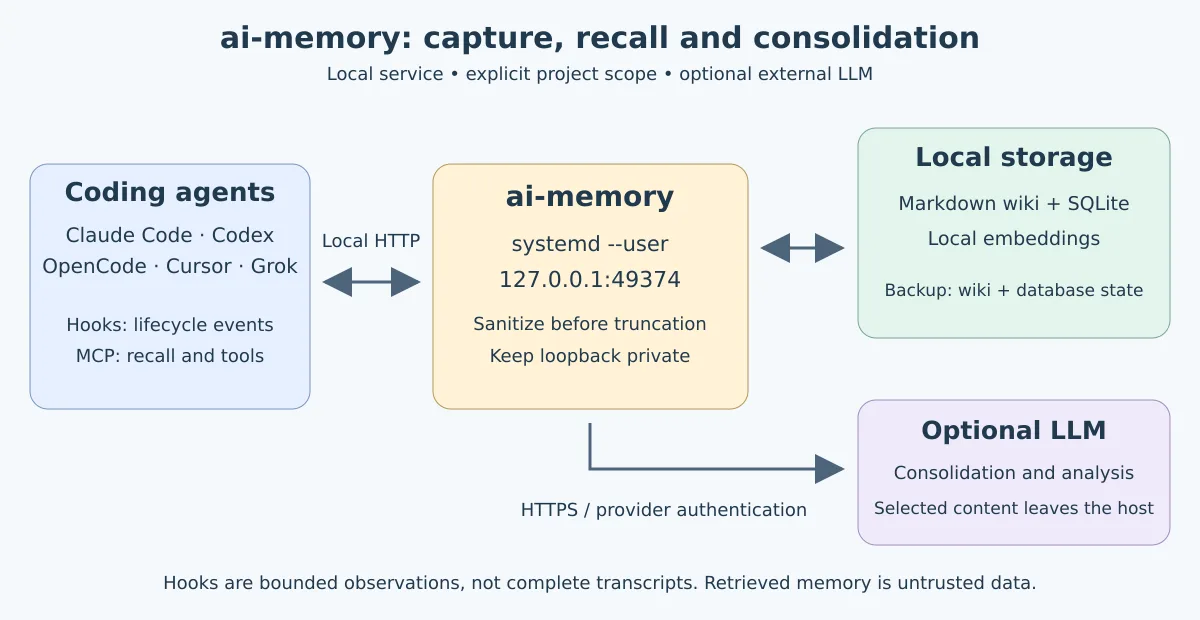
ai-memory is a long-term memory server for coding agents. The hooks record sanitized, limited observations of prompts and tools — not a full transcript. The server produces summaries and can consolidate the material into Markdown pages; querying and handoffs are available via MCP. The wiki in files .md is the source of truth for pages. SQLite holds derived indexes and also operational state, such as sessions, observations, and handoffs. This makes memory inspectable, versionable, and recoverable without relying on an opaque vector database.
The default path requires no API key or LLM calls: capture, text search, and handoff remain available. On the first server run, ai-memory downloads a local model all-MiniLM-L6-v2 for embeddings; it does not need an API key. An LLM is optional for consolidation and recovery features. To disable local embeddings, set embedding_provider = "none" in the configuration. Before enabling hooks, evaluate what can enter the project history. For sensitive areas, use a capture policy and keep the instance on loopback only.
What changed in line 2.x
The announcement of the ai-memory 2.0 helps understand why this is not just a summary manager. The wiki now uses the Open Knowledge Format (OKF): Markdown pages with standardized metadata. In other words, the memory remains readable outside the server — you can inspect it, version it in Git, or take it to another compatible tool.
When migrating a 1.x installation, 2.0 creates and verifies a backup of the data directory before changing the format. Don't discard this backup until you've verified the wiki and queries after the update. Local embeddings continue to be the default path: they don't require an API key or send the memory content to an external provider.
The other practical change is concurrency. Claude Code, Codex, OpenCode and other harnesses can work on the same checkout without sharing a global “current project” pointer. Writes go through a single queue and pages receive versions, so a later update won't silently erase the previous one. In a shared installation, pages can serve the entire team; however, handoffs remain personal and can only be accepted once by the session owner.
This doesn't mean an already open conversation is interrupted to receive a new annotation: it will see it on the next query or in a following session. For teams, keep authentication and HTTPS enabled before exposing the service outside the local machine.
What changes for those installing 2.6.3
The 2.6 series added cross-project preference profile, backup of agent settings, handoff controls, and the optional exporter ai-memory-wikisync. The following patches fixed capture, privacy, and routing issues. For this tutorial, these are the practical points:
- Explicit MCP scope: in static clients, report
workspaceandproject; do not assume that hooks also identify the session in MCP calls. - Reapply the hooks: the generated TypeScript integrations received fixes for event retention when the server responds with temporary failures.
- Review the old profile: fixes in the identification of preferences do not automatically delete entries already admitted.
- Server and clients are distinct processes: replacing the binary does not restart the service nor reload already open agent plugins.
Check the changelog pinned in 2.6.3. The ai-memory-wikisync it is a unidirectional export of allowed page families; it is not bidirectional synchronization and is not required for this installation.
Prerequisites and choosing the installation method
The project offers Linux binaries for x86_64 and aarch64. The recommended alternative by the project itself for native installations is mise use -g github:akitaonrails/ai-memory; below we'll use the release tarball to make version, checksum, binary and hooks explicit.
Don't use cargo install ai-memory: that name already belongs to another crate on crates.io. To build, use the repository workspace; for normal operation, prefer a binary from the release v2.6.3. On Fedora, the release also publishes RPMs for x86_64 and aarch64, installable with sudo dnf install ./ai-memory-2.6.3-1.<arq>.rpm; the package ships the project's systemd service files. This guide continues with the Linux tarball; check the supported architecture and validate the executable on your distribution.
command -v curl sha256sum tar systemctl
uname -m
mkdir -p ~/.local/bin ~/.config/ai-memory ~/.local/share/ai-memory ~/.config/systemd/user
Downloading and verifying the native binary
Always download the file .sha256 published alongside the tarball and abort the installation if the checksum does not match. The block below selects the architecture, uses the release v2.6.3 and preserves the hooks that ship in the package.
set -euo pipefail

VER=2.6.3
case "$(uname -m)" in
  x86_64)  ARQ=ai-memory-linux-x86_64.tar.gz ;;
  aarch64|arm64) ARQ=ai-memory-linux-aarch64.tar.gz ;;
  *) echo "Arquitetura sem binário publicado: $(uname -m)" >&2; exit 1 ;;
esac

BASE="https://github.com/akitaonrails/ai-memory/releases/download/v${VER}"
TMP=$(mktemp -d)
trap 'rm -rf "$TMP"' EXIT

curl -fL "$BASE/$ARQ" -o "$TMP/$ARQ"
curl -fL "$BASE/$ARQ.sha256" -o "$TMP/$ARQ.sha256"
(
  cd "$TMP"
  sha256sum -c "$ARQ.sha256"
  mkdir release
  tar -xzf "$ARQ" -C release
)

install -m 0755 "$TMP/release/ai-memory" "$HOME/.local/bin/ai-memory.new"
mv -f "$HOME/.local/bin/ai-memory.new" "$HOME/.local/bin/ai-memory"
install -d "$HOME/.local/share/ai-memory/release-$VER"
cp -a "$TMP/release/hooks" "$HOME/.local/share/ai-memory/release-$VER/"

export PATH="$HOME/.local/bin:$PATH"
ai-memory --version
If ai-memory does not appear in a new terminal, add export PATH="$HOME/.local/bin:$PATH" to the shell initialization file, such as ~/.bashrc or ~/.zshrc.
Initializing the local database
Let's keep the configuration in ~/.config/ai-memory/config.toml and the data in ~/.local/share/ai-memory, the expected default in a Linux user installation.
ai-memory \
  --data-dir "$HOME/.local/share/ai-memory" \
  --config "$HOME/.config/ai-memory/config.toml" \
  init
After first use, the wiki is in ~/.local/share/ai-memory/wiki/, the SQLite index in ~/.local/share/ai-memory/db/memory.sqlite and the local templates in ~/.local/share/ai-memory/models/. The wiki is the source of truth for pages, but sessions, observations, handoffs, and audit also live in the database. For a full copy, use the backup from ai-memory itself after starting the server, as shown in the next section.
Starting the server with user systemd
The MCP server needs to stay running so CLIs and hooks can talk to it. This user service listens only on 127.0.0.1:49374: do not expose this port to the network.
cat > ~/.config/systemd/user/ai-memory.service <<'UNIT'
[Unit]
Description=ai-memory local MCP and lifecycle server
After=network.target

[Service]
Type=simple
WorkingDirectory=%h
ExecStart=%h/.local/bin/ai-memory --data-dir %h/.local/share/ai-memory --config %h/.config/ai-memory/config.toml serve --transport http --bind 127.0.0.1:49374 --enable-web
Restart=on-failure
RestartSec=5
NoNewPrivileges=true
PrivateTmp=true

[Install]
WantedBy=default.target
UNIT

systemctl --user daemon-reload
systemctl --user enable --now ai-memory.service
systemctl --user status ai-memory.service --no-pager
On a machine that should keep the service running even without a graphical login, enable linger once:
loginctl enable-linger "$USER"Check the process and logs when something doesn't respond:
systemctl --user is-active ai-memory.service
journalctl --user -u ai-memory.service -n 80 --no-pager
ai-memory status
With the server running, create a full backup of the memory. This command depends on the service API; it does not work before starting it:
mkdir -p "$HOME/backups/ai-memory"
ai-memory backup --to "$HOME/backups/ai-memory/ai-memory-$(date +%Y%m%d-%H%M).tar.gz"
Optional LLM: configure and test separately
Capture, text search, and handoff do not depend on a generative LLM. Consolidation with an external provider pushes selected content off the machine: evaluate privacy, availability and limits before enabling it.
The ai-memory openai-oauth provider uses its own login and stores the token in <data_dir>/auth.json. It is not the same as codex, which reuses the access managed by Codex CLI. The release documentation indicates gpt-5.5 as the default for openai-oauth; availability depends on the account and the service. Do not confuse this example with the historical configuration of this lab, which used gpt-6-luna with effort high.
ai-memory auth login openai-oauth
ai-memory auth status
ai-memory llm-test \
  --provider openai-oauth \
  --model gpt-5.5 \
  --prompt 'Responda somente: OK'
Log in with the same user and data directory used by the service. Do not publish tokens or the auth.json. Only proceed if the test works with your account. Then, for a new installation, create the drop-in:
mkdir -p ~/.config/systemd/user/ai-memory.service.d
cat > ~/.config/systemd/user/ai-memory.service.d/llm-openai-oauth.conf <<'EOF'
[Service]
Environment=AI_MEMORY_LLM_PROVIDER=openai-oauth
Environment=AI_MEMORY_LLM_MODEL=gpt-5.5
Environment=AI_MEMORY_CONSOLIDATE_ON_SESSION_END=true
EOF
systemctl --user daemon-reload
systemctl --user restart ai-memory.service
ai-memory status
In a service that is already configured, edit the existing drop-in instead of overwriting it. systemd variables are not exported to your terminal. If you choose another model or AI_MEMORY_LLM_REASONING_EFFORT, validate the combination with llm-test; more reasoning does not guarantee a better consolidation. The test for this review checked the binary and the commands, it did not redo authentication or make a paid call to the provider.
Registering MCP and hooks in agents
MCP gives the agent tools like memory query and handoff acceptance. Hooks handle lifecycle capture automatically. Both are required for the full experience. The commands below merge ai-memory entries without requiring manual editing of client JSON and TOML files.
Set the extracted hooks directory during installation and run the command pair for each installed client:
export PATH="$HOME/.local/bin:$PATH"
HOOKS_DIR="$HOME/.local/share/ai-memory/release-2.6.3/hooks"

# Claude Code
ai-memory install-mcp --client claude-code --apply
ai-memory install-hooks --agent claude-code --hooks-dir "$HOOKS_DIR" --apply --project-strategy repo-root

# OpenAI Codex
ai-memory install-mcp --client codex --apply
ai-memory install-hooks --agent codex --hooks-dir "$HOOKS_DIR" --apply --project-strategy repo-root

# OpenCode
ai-memory install-mcp --client open-code --apply
ai-memory install-hooks --agent open-code --apply --project-strategy repo-root

# Cursor Agent CLI
ai-memory install-mcp --client cursor --apply
ai-memory install-hooks --agent cursor --hooks-dir "$HOOKS_DIR" --apply --project-strategy repo-root

# Grok Build CLI
ai-memory install-mcp --client grok --apply
ai-memory install-hooks --agent grok --hooks-dir "$HOOKS_DIR" --apply --project-strategy repo-root
Restart clients after merging. In Codex, approve hooks when the client requests confirmation. OpenCode loads hooks as a TypeScript plugin in ~/.config/opencode/plugins/, so it also needs to be restarted. In Grok, the stdout from SessionStart is still discarded; since 2.5.0, the pending handoff is delivered as context on the first tool use of the session. If the session doesn't call any tool, ask the agent to call memory_handoff_accept. In Codex CLI 0.145.0 or newer, the event SessionEnd ends the session and, if automatic creation is enabled, creates the handoff for the next session. In older versions — or when that event is not available — the Stop event does not end the session: run ai-memory finalize-session --agent codex when finishing an important task.
Scope per repository and privacy rules
With no configuration, starting in 2.5.0 the project of a checkout with a Git remote is identified by the repository (remote upstream, otherwise origin), not by folder name: two clones of the same repository in different folders fall into the same project, and two distinct repositories with the same folder do not get mixed up. Compatible existing projects can be reused. In 2.6, current clients send by default identity_style = "path": the name is derived from the full remote path, without the host. An authorized capture or write can promote a compatible name, preserving the UUID; queries do not rename projects and ambiguities are refused. Check the result with ai-memory doctor and ai-memory list-projects. Without a remote, the directory name applies. The --project-strategy repo-root used above prevents a cd from creating a separate memory for a subdirectory. To declare the scope in the repository itself, create .ai-memory.toml at the root:
workspace = "pessoal"
project = "site-linuxpro"

[briefing]
inject_on_session_start = "true"
max_chars = 4000

[capture]
ignore_paths = ["private/**", "~/.ssh/**"]
The values of workspace and project accept lowercase ASCII letters, digits, dot, hyphen and underscore. A project declared in the marker still takes priority over the Git remote. The section capture avoids logging recognized events from archive tools under the indicated paths; it is not a complete DLP solution for shell commands or content you write yourself in the prompt. For maximum caution, install the hooks in allowlist mode and place the marker only on repositories that should be captured:
ai-memory install-hooks --agent claude-code --hooks-dir "$HOOKS_DIR" --apply --capture-mode allowlistHooks do not guarantee scope in MCP calls
A client is only session-aware when it forwards the real lifecycle session ID in each MCP call. Having hooks installed, by itself, does not do that. In the static client, the agent must read the exact names of the .ai-memory.toml and pass both arguments in every project operation:
{"workspace": "pessoal", "project": "site-linuxpro"}These names are only those from the example above. Do not infer the scope from the folder name or the server's latest active project. In 2.6.3, memory_message_send, memory_message_pop and memory_message_cancel refuse inferred scope with no link to the session; memory_message_list report how the scope was resolved. The refusal prevents acting on another projecter's box.
For Claude Code, there is an optional bridge ai-memory install-mcp --client claude-code --session-aware --apply. Check how it works before relying on automatic selection. For global queries, use global=true without mixing it with workspace, project or scopes.
Shared profile: see what carries across projects
Since 2.6.0, the profile can learn preferences from your requests and curated pages. Do not confuse this feature with absolute isolation between projects: in a single-operator setup, it shares work patterns across workspaces. Inspect the content before adopting it in client work:
ai-memory profile status
ai-memory profile list
ai-memory profile review
To prevent a project from contributing to or receiving this profile, add to its .ai-memory.toml, without deleting the existing settings:
[profile]
contribute = false
consume = false
When updating from 2.6.0: profile rebuild re-reads the base, but does not remove old entries nor reclassify all already registered candidates. Review the evidence with profile review and individually remove an incorrect preference with ai-memory profile forget CAMINHO_DA_ENTRADA, using the path shown in the listing. Do not run bulk deletions without reviewing. Recovered memory never authorizes commands nor replaces your current instructions.
These options control the profile; they do not turn off the hooks nor substitute [capture]. Consult the profile documentation to review, remove preferences and configure server behavior.
Handoff without automatic consumption
If opening a session must not consume the context reserved for another task, adjust the section below in the configuration file used by the server. Preserve the other sections and restart the service:
[handoff]
claim_on_session_start = false
create_on_session_end = false
With the first option, opening shows a notice with the handoff ID, without claiming it. The agent can list the pending ones with memory_handoff_list and accept the chosen one by ID. The second turns off automatic creation on termination of unmanaged sessions; summaries and consolidation continue. Explicit handoffs and managed runs are not disabled. Both are global server options and remain true by default.
Querying memory and delivering context
After working normally through the agent, use MCP to request a search about decisions, files, or previous attempts. When ending, finalize the session when necessary; the next agent should accept the pending handoff instead of starting from scratch.
# Útil principalmente após uma sessão do Codex:
ai-memory finalize-session

# Diagnóstico e manutenção local
ai-memory status
ai-memory doctor
ai-memory lint
Inside Claude, Codex, OpenCode, Cursor Agent CLI or Grok, a simple instruction is enough: “search memory for decisions about this project's authentication” or “accept the pending handoff”. The agent uses the registered MCP tools; there's no need to copy the wiki into the conversation.
Remote access: do not expose the raw port
This article's example is local and doesn't use authentication because the bind is loopback-only. To serve another machine, configure bearer token, allowed_hosts and HTTPS through a reverse proxy before changing the bind. Authentication doesn't encrypt traffic. The project maintains an HTTPS proxy guide with examples for Caddy and Cloudflare Tunnel.
Updates and recovery
Before replacing the executable, back it up. The manual installation above also works for upgrading; you do not need to recreate the database, the service, or the credentials.
mkdir -p "$HOME/backups/ai-memory"
ai-memory backup --to "$HOME/backups/ai-memory/ai-memory-$(date +%Y%m%d-%H%M%S).tar.gz"
Leaving 2.4.x or 2.5.x: prefer the manual block from this guide, with VER=2.6.3. 2.4.x did not have upgrade; the updater from 2.5.x could refuse auxiliary files from the official package. The fix for this second issue arrived in 2.6.0 — it is not in the old binary that is trying to update.
Native installation by release, already on 2.6.0 or later: use the updater with an explicit version. AUR, RPM, Homebrew installations, or other package managers should follow the corresponding upgrade method, not this command.
ai-memory upgrade --version 2.6.3
systemctl --user restart ai-memory.service
systemctl --user is-active ai-memory.service
ai-memory --version
ai-memory status
The CLI and the server should indicate the expected version. If the service is still starting, see journalctl --user -u ai-memory.service -n 80 --no-pager and repeat the query. The upgrade reapplies registered hooks, but open clients need to be restarted.
In the manual upgrade, reapply the hooks using the files from the new release. Do this only for agents you use. Generated integrations, such as OpenCode, also need to be regenerated to receive the delivery fixes from 2.6.3:
HOOKS_DIR="$HOME/.local/share/ai-memory/release-2.6.3/hooks"
# Exemplo após download manual:
ai-memory install-hooks --agent codex --hooks-dir "$HOOKS_DIR" --apply
# Se utiliza OpenCode:
# ai-memory install-hooks --agent open-code --apply

# Na raiz de cada projeto, renove instruções e skills gerenciadas:
ai-memory install-instructions --target AGENTS.md --skills-agent agents
# Claude Code: --target CLAUDE.md --skills-agent claude-code

systemctl --user restart ai-memory.service
ai-memory doctor
The instructions installer preserves text outside the managed block. Reapplying hooks without --project-strategy keeps the already registered strategy. Restart the MCP clients, open a test session, and check whether capture and query use the correct project. It is not enough to check only ai-memory --version.
Validation of this review: in 10/10/2026, the Linux x86_64 tarball from 2.6.3 passed sha256sum -c and the extracted executable reported ai-memory 2.6.3. The syntax of key subcommands was verified by --help. There was no update of this station's service nor end-to-end testing of all clients in this editorial review.
Memory backup is not agent backup
ai-memory backup preserves the wiki and SQLite state, including sessions, notes, and handoffs. The command below covers another set: configurations, skills, plugins, and agent instructions. See the plan first and then generate the file:
ai-memory backup-agents --dry-run --to "$HOME/backups/ai-memory/agentes.tar.gz"
ai-memory backup-agents --to "$HOME/backups/ai-memory/agentes-$(date +%Y%m%d-%H%M%S).tar.gz"
Default sanitization covers MCP configuration text, not the entire file: other contents are copied as-is and may contain secrets. Protect the file and do not publish it on Git. Before recovering data, consult ai-memory restore --help or ai-memory restore-agents --help, according to the backup type. During migrations, also keep the previous version of the binary; do not attempt to downgrade against an already migrated database without a restore plan.
Author credit and license
The ai-memory is created and maintained by Fábio Akita, author of the repository akitaonrails/ai-memory. The file LICENSE from the release identifies “Copyright (c) 2026 Fabio Akita” and makes the project available under the MIT license. Thank you to Fábio for making available an open, local, and interoperable alternative for agent memory.
With the local service, MCP and hooks installed, you can switch agents without abandoning the project's technical history. To compare other options, see also the alternatives to Claude-Mem in Go, Rust, and C and the article about persistent memory for agents on Linux.