
rclone is the “rsync for cloud storage”: a single binary, written in Go, that copies, syncs, verifies, encrypts, mounts, and serves files across more than 70 storage services — Amazon S3, MinIO, Backblaze B2, Cloudflare R2, Google Drive, OneDrive, SFTP, WebDAV, SMB, and dozens of others. The stable version as of September 2026 is 1.75.1 (04/09). This guide goes from installation all the way to scheduled encrypted backup with systemd, covering mount, serve and the new web GUI.
If you already use rsync between servers, rclone is the same idea with one detail that changes everything: the other side doesn't need to be a machine with SSH. It can be a bucket, a personal drive, or another cloud provider — and copying between two clouds happens without writing anything to your disk. Source code at github.com/rclone/rclone, documentation at rclone.org/docs.
What is rclone
The project was created by Nick Craig-Wood and has been on GitHub since March 2014. License MIT, about 60 thousand stars, static binary with no dependencies: download it, run it. The same executable runs on Linux, macOS, Windows, and BSDs, on amd64, arm64, and other architectures.
The central concept is the remote: a name you register (meus3:, gdrive:, cofre:) that points to a backend with your credentials. Every command accepts a local path or remote:caminho, on either side:
rclone copy /srv/dados meus3:backups/srv      # local → nuvem
rclone copy gdrive:Fotos meus3:fotos           # nuvem → nuvem
rclone ls meus3:backups                        # listar como se fosse ls
In addition to the “real” backends, there are the virtual, ones, which wrap another remote: crypt (cryptography), union (combines multiple remotes into one), chunker (splits large files), compress, hasher, combine and alias. This is what allows, for example, an encrypted backup on top of any provider.
Architecture: where rclone fits in
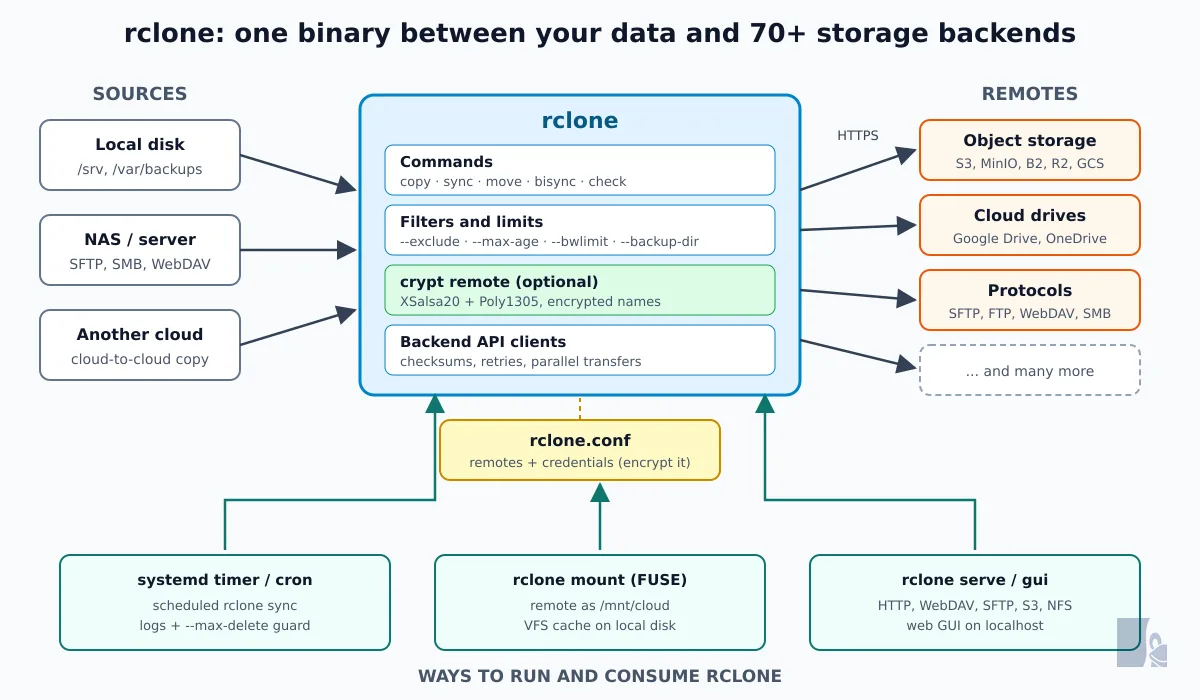
rclone sits between the sources (local disk, NAS, another cloud) and the destinations. Internally, each operation passes through the commands, filters and limits, optionally through the encryption layer, and reaches the API clients of each backend, which handle checksum, retries, and parallel transfers. The credentials live in rclone.conf. Externally, you consume rclone in three ways: scheduled (systemd/cron), mounted as a file system (FUSE), or serving the remote over HTTP, WebDAV, SFTP, S3, or NFS.
Installation
The distro repositories are behind: Ubuntu 24.04 and Debian 13 package the 1.60.1, without bisync stable, without gui, without archive and without years of fixes. Use the official script, which downloads the latest stable version and installs it in /usr/bin/rclone with the man page:
sudo -v ; curl https://rclone.org/install.sh | sudo bash
rclone version
Prefer not to pipe a script into bash? Download the zip and install it manually:
VER=v1.75.1
curl -LO https://downloads.rclone.org/$VER/rclone-$VER-linux-amd64.zip
unzip rclone-$VER-linux-amd64.zip
sudo install -m 755 rclone-$VER-linux-amd64/rclone /usr/bin/rclone
sudo mkdir -p /usr/local/share/man/man1
sudo install -m 644 rclone-$VER-linux-amd64/rclone.1 /usr/local/share/man/man1/
To use rclone mount, also install FUSE 3:
sudo apt install fuse3Updating later is a single command: sudo rclone selfupdate. There is also an official Docker image (rclone/rclone) and a snap, the latter maintained by the community and subject to snap confinement limitations.
Setting up your first remote
The interactive way is rclone config: a wizard asks for the backend type and credentials and writes everything to ~/.config/rclone/rclone.conf. For scripts and automation, the rclone config create does the same in one line. Example with a MinIO (or any S3-compatible) bucket:
rclone config create meus3 s3 \
  provider=Minio \
  access_key_id=MINHA_CHAVE \
  secret_access_key=MEU_SEGREDO \
  endpoint=https://minio.exemplo.com.br

rclone lsd meus3:                 # lista os buckets
rclone mkdir meus3:backups        # cria um bucket
The result is a simple INI block in the configuration file:
[meus3]
type = s3
provider = Minio
access_key_id = MINHA_CHAVE
secret_access_key = MEU_SEGREDO
endpoint = https://minio.exemplo.com.br
For AWS replace provider=AWS and provide region; for Cloudflare R2, Wasabi, Hetzner, Magalu Cloud and others, the provider has its own value — the complete list goes out of rclone help backend s3. If you don't yet have your own S3, the post about OpenObserve with S3, GCS and MinIO shows that side.
Backends with OAuth want to open a browser for you to authorize. On a headless server, answer n when rclone config asks if it can use the browser. It will ask for a token; generate it on any machine with a browser and the same rclone installed:
# no desktop, com navegador
rclone authorize "drive"
# autorize na página que abre e copie o bloco que o comando imprime
# de volta ao servidor, cole o bloco no prompt do rclone config
No tunnel and no copying the rclone.conf entirely between machines.
copy, sync, move, and bisync: choosing the right verb
This is where rclone forgives little. The four commands look similar and do quite different things with the destination:
| Command | What it does | Delete in destination? |
|---|---|---|
copy |
Copies what is new or changed; ignores identical files | Never |
sync |
Leaves the destination identical to the source | Yes, anything that does not exist in the source |
move |
Copy and delete in destination | No (delete in destination) |
bisync |
Two-way sync, with conflict detection | Yes, on both sides |
The classic mistake is swapping source and destination in an sync: rclone obeys and deletes the side you wanted to preserve. That's why, before every sync new:
rclone sync /srv/dados meus3:backups/srv --dry-run      # mostra o que faria
rclone sync /srv/dados meus3:backups/srv -i             # pergunta arquivo a arquivo
rclone sync /srv/dados meus3:backups/srv -P             # executa com progresso
The bisync officially exited beta in 1.71. On the first run it needs to --resync to map the initial state of both sides; afterwards, run without the flag:
rclone bisync ~/Documentos gdrive:Documentos --resync   # só na primeira vez
rclone bisync ~/Documentos gdrive:Documentos            # as próximas
For backup, prefer sync or copy in one direction only. bisync is for folders you edit on both sides, like a homegrown Dropbox.
Filters: what gets in and what gets left out
To exclude a quick pattern, use --exclude. For real rules, a filters file, read from top to bottom — the first matching rule decides:
sudo mkdir -p /etc/rclone
sudo tee /etc/rclone/filtros.txt >/dev/null <<'EOF'
- node_modules/**
- .cache/**
- *.tmp
- *.swp
+ **
EOF

rclone sync /srv meus3:backups/srv --filter-from /etc/rclone/filtros.txt --dry-run
Other handy everyday filters: --max-age 7d (only what changed in the last week), --min-size 1M, --exclude-if-present .nobackup (skip directories that contain this file) and rclone lsf -R origem --filter-from filtros.txt, which lists exactly what the filter lets through without transferring anything.
Encryption with the crypt remote
The crypt is a remote that wraps another one. Everything you write to cofre: comes out encrypted on the underlying remote, with content encrypted by XSalsa20 + Poly1305 (NaCl's SecretBox) and, optionally, file and directory names also encrypted. The provider only sees blobs with random names.
rclone config create cofre crypt \
  remote=meus3:backups-cifrados \
  password=$(rclone obscure 'uma-senha-longa-e-aleatoria') \
  filename_encryption=standard \
  directory_name_encryption=true

rclone copy /srv/dados cofre:srv
rclone ls cofre:srv                    # nomes em claro, via rclone
rclone ls meus3:backups-cifrados       # o que o provedor vê: nomes embaralhados
On the bucket side, the result looks like this:
5e4j7s0dqn1dn7tpog50ss59t4/ees62i2pgm1tg01hd2euclo548
64m5qfpup4djr71a5er0jmd3p4
cj3kojq3km80ciulanc65ichm4
Three precautions:
- The password is the backup. If you lose the password (and the salt, if you used
password2), you lose the data. Store it in a password vault, such as Vaultwarden, outside the server performing the backup. - The file size is not hidden — it is possible to calculate the original size with a margin of 16 bytes — not even the directory structure and modification dates.
- To verify an encrypted remote, use
rclone cryptcheck /srv/dados cofre:srv: it compares the checksums without downloading the files.
Protecting rclone.conf
Passwords recorded by rclone in the rclone.conf are obfuscated, unencrypted: the rclone obscure uses AES-CTR with a fixed key, known by any version of rclone. It only protects against casual glances. Whoever reads the file reads your S3 keys and the crypt. Encrypt the entire config:
rclone config encryption set      # define a senha do arquivo
rclone config encryption check    # confirma que está cifrado
chmod 600 ~/.config/rclone/rclone.conf
With the encrypted file, every execution asks for the password. For automation, pass it via the RCLONE_CONFIG_PASS variable (loaded from a file with 600mode) or via --password-command, which runs a command and reads the password from its output—useful with pass, secret-tool or an external vault.
Scheduled backup with systemd timer
Putting it all together: a nightly backup of /srv to the encrypted remote, with older versions preserved and a safeguard against accidental wipe. First, the script:
sudo tee /usr/local/bin/rclone-backup.sh >/dev/null <<'EOF'
#!/usr/bin/env bash
set -euo pipefail
DIA=$(date +%F)
exec /usr/bin/rclone sync /srv cofre:srv \
  --filter-from /etc/rclone/filtros.txt \
  --backup-dir "cofre:srv-versoes/$DIA" \
  --max-delete 500 \
  --transfers 8 \
  --log-file /var/log/rclone/backup.log \
  --log-level INFO \
  --stats 5m --stats-one-line
EOF
sudo chmod 755 /usr/local/bin/rclone-backup.sh
sudo mkdir -p /var/log/rclone
What each flag protects:
--backup-dir: any file thatsyncwould delete or overwrite goes tosrv-versoes/AAAA-MM-DD/instead of disappearing. It's your date-stamped “trash”.--max-delete 500: upon reaching 500 deletions the sync stops deleting and exits with an error. An empty source disk due to a mount failure does not turn into an empty bucket—and what was already deleted is still in the--backup-dir.--log-fileand--stats-one-line: human-readable history for auditing.
The service runs as root and reads the configuration from /etc/rclone. Copy to that location the rclone.conf already encrypted and put its password in an environment file accessible only to root:
sudo install -m 600 ~/.config/rclone/rclone.conf /etc/rclone/rclone.conf
sudo install -m 600 /dev/null /etc/rclone/backup.env
echo 'RCLONE_CONFIG_PASS=senha-do-arquivo-de-config' | sudo tee /etc/rclone/backup.env >/dev/null
Now the service and the timer:
# /etc/systemd/system/rclone-backup.service
[Unit]
Description=Backup de /srv para a nuvem com rclone
Wants=network-online.target
After=network-online.target

[Service]
Type=oneshot
EnvironmentFile=/etc/rclone/backup.env
Environment=RCLONE_CONFIG=/etc/rclone/rclone.conf
ExecStart=/usr/local/bin/rclone-backup.sh
Nice=10
IOSchedulingClass=idle
# /etc/systemd/system/rclone-backup.timer
[Unit]
Description=Backup noturno com rclone
[Timer]
OnCalendar=*-*-* 02:30:00
RandomizedDelaySec=15m
Persistent=true
[Install]
WantedBy=timers.targetsudo systemctl daemon-reload
sudo systemctl enable --now rclone-backup.timer
sudo systemctl start rclone-backup.service # primeiro teste, na hora
systemctl list-timers rclone-backup.timer
journalctl -u rclone-backup.service -n 50Persistent=true runs the missed backup if the machine was off at 02:30. The basics of units and timers are covered in Mastering systemd. For databases, do not copy the files of the datadir that is in use: generate the dump first (the Databasus does this with tested restore) and let rclone take the dump off the server.
And a backup that was never restored is hope, not a backup. Test from time to time:
rclone check /srv cofre:srv --filter-from /etc/rclone/filtros.txt --one-way
rclone copy cofre:srv/etc/nginx /tmp/restore-teste -P
Mounting the cloud as a directory: rclone mount
The rclone mount exposes any remote as a filesystem via FUSE. Programs that only understand local paths can then read and write to the bucket:
mkdir -p ~/nuvem
rclone mount cofre: ~/nuvem \
  --vfs-cache-mode full \
  --vfs-cache-max-size 20G \
  --daemon

ls ~/nuvem
fusermount3 -u ~/nuvem       # desmontar
The --vfs-cache-mode defines how much rclone keeps on local disk. Without cache (off), many programs fail because the remote object does not accept random writes. writes already solves most cases; full also caches reads and is what behaves most like a disk. One gotcha: the write goes up to the cloud a few seconds after the file is closed (--vfs-write-back, default 5 s). Unmounting in the middle of that leaves the upload pending in the local cache — wait for the log to confirm before unmounting or shutting down.
To mount at boot, use a systemd service with Type=notify and without --daemon, or a line in /etc/fstab with type rclone (the man page for rclone mount includes both examples). For other users to see the mount, enable user_allow_other in /etc/fuse.conf and pass --allow-other.
Serving files: serve and the new GUI
The reverse path: rclone becomes a server and exposes a remote via a standard protocol. rclone serve speaks HTTP, WebDAV, FTP, SFTP, S3, NFS, DLNA, the restic REST API, and the Docker volumes plugin:
# WebDAV com autenticação, para montar no gerenciador de arquivos
rclone serve webdav cofre:compartilhado --addr :8080 --user nilton --pass 'troque-isto'

# um S3 compatível na frente de qualquer backend (até de um Google Drive)
rclone serve s3 gdrive:dados --addr :9000 --auth-key CHAVE,SEGREDO

# repositório do restic direto num remote
rclone serve restic meus3:restic --addr 127.0.0.1:8000
By default it listens only on 127.0.0.1. Once you expose it to the network, put TLS (--cert and --key) or a reverse proxy in front of it.
Since 1.74, the binary ships with a built-in web interface. The command launches the remote control API and the GUI on local ports, generates credentials, and opens the browser already authenticated:
rclone gui                                  # desktop
rclone gui --no-open-browser --addr localhost:5580
# num servidor: ssh -L 5580:localhost:5580 usuario@servidor
For those who want to browse files with a full multi-user web interface, Filestash and the FileBrowser Quantum are a different category of tool — and can serve a directory mounted by rclone.
Performance and bandwidth limits
The defaults are conservative: 4 transfers and 8 checkers in parallel. For many small files in object storage, raising both helps a lot:
rclone sync /srv meus3:backups/srv \
  --transfers 16 --checkers 32 \
  --fast-list \
-P--fast-list: lists the bucket recursively in fewer API calls. It uses more memory but saves time and requests (which many providers charge for).--checksum: compares by hash instead of date and size, when both sides support it.--bwlimit: accepts a fixed value or a schedule table, so as not to bring the link down during business hours:
rclone sync /srv meus3:backups/srv --bwlimit "08:00,2M 19:00,20M 23:00,off"For diagnostics, rclone ncdu meus3: shows space usage in a terminal browser, and rclone about meus3: displays the quota on backends that report it.
rclone, rsync, or restic?
- rsync: between Linux machines over SSH, with block-level delta within the file. Here it keeps being better: rclone transfers the entire file when something changes.
- rclone: when the destination is cloud, bucket, or drive; copy between clouds; file-by-file readable mirror; mount or serve a remote.
- restic (or Borg): backup with deduplication, snapshots, and policy-based retention. They don't replace rclone, they combine with it: restic uses rclone as a backend (
restic -r rclone:meus3:restic) and inherits the more than 70 destinations.
A simple rule: mirror and transport, rclone; version history with deduplication, restic on top of rclone.
Pocket commands
rclone listremotes                         # remotes configurados
rclone lsd remote:                         # diretórios/buckets
rclone lsf -R remote:caminho               # lista para scripts
rclone tree remote:caminho                 # árvore
rclone size remote:caminho                 # total de objetos e bytes
rclone copyto arq.txt remote:dir/novo.txt  # copiar com outro nome
rclone cat remote:dir/arq.txt              # conteúdo na saída padrão
rclone check origem remote:destino         # conferir sem transferir
rclone dedupe remote:                      # duplicados (comum no Google Drive)
rclone purge remote:dir                    # apaga diretório e conteúdo (cuidado)
rclone archive list remote:pacote.zip      # conteúdo de um zip/tar no remote
Closing
rclone does one thing only — moving files between places — and does it with a backend coverage no other free tool has. For an off-server backup, four pieces solve it: an object storage remote, a crypt on top of it, a rclone.conf encrypted one and a systemd timer with --backup-dir and --max-delete. Always start with --dry-run and test the restore before you need it.
Continue in part 2: see how to do an migration from Amazon S3 to Google Cloud Storage or OCI with rclone, with initial copy, deltas, verification, and rollback plan.