
The Vaultwarden is a server compatible with official Bitwarden clients, written in Rust. It fits on a Raspberry Pi, uses very little memory, and delivers in self-host features that the official Bitwarden only offers on a paid plan, such as the integrated TOTP authenticator and emergency access. It is not Bitwarden Inc.: it's the community project (formerlybitwarden_rs), under AGPL-3.0 license, now at 1.37.3.
If you already have a Linux box on the internet and don't want to send your vault to anyone's cloud, this is the short path: one container, HTTPS in front, and the official apps pointed at your domain.
What it is (and isn't)
The apps (Android, iOS, desktop, browser extension, CLI) speak the Bitwarden API, and Vaultwarden implements that API. The vault stays encrypted on the client (zero-knowledge): items arrive at the server already encrypted with a key derived from your master password, and the server cannot read them.
- Useful for you, your family, your homelab, a small team. It runs on SQLite (default), MySQL, or PostgreSQL. In our test, the freshly started container with no users used about 10 MiB of RAM.
- Not suitable for a company needing SOC 2, an SLA and support from Bitwarden Inc. The project has no equivalent formal audit. You are the backup, the patch and the firewall.
Keep an eye on versions, because the official clients evolve fast: 1.37.0 is required for clients 2026.7.0 and later, and 1.37.2 for 2026.8.0 and later. 1.37.0, from July 2026, also fixed a bundle of security flaws (SSRF on the icons endpoint, cross-organization item access, unauthenticated WebSocket flooding, among others), and 1.37.3 started revoking 2FA “remember this device” tokens when the password or 2FA change. Since 1.35.0 (December 2025), single sign-on (SSO) via OpenID Connect is native, enabled with SSO_ENABLED. SCIM and Secrets Manager remain exclusive to official Bitwarden.
Deploy with Docker and Caddy
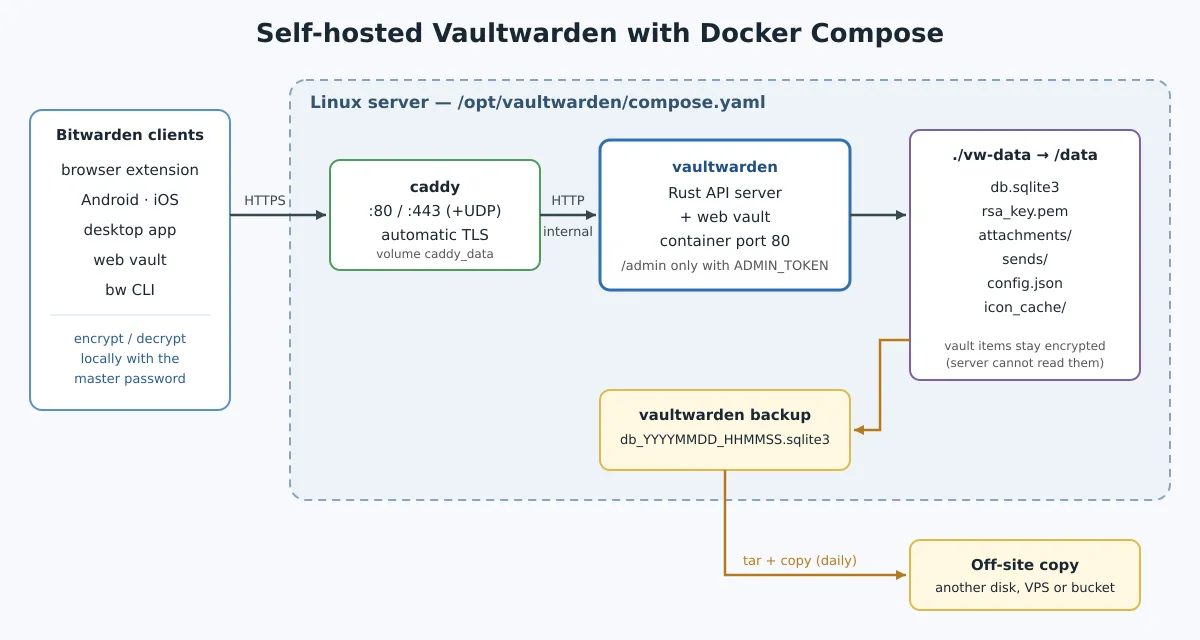
The recommended path from upstream is the container. HTTPS is required: the web vault uses the Web Crypto API, which the browser only allows in a secure context. The Caddy obtains and renews the certificate on its own. (If Docker is still new to you, there's the Docker course.)
Generate the admin panel token (Argon2) before from compose. The command asks for the password twice and prints the hash:
docker run --rm -it vaultwarden/server:1.37.3 /vaultwarden hash
Paste the string $argon2id$... in the YAML. In Compose, each $ becomes $$.
mkdir -p /opt/vaultwarden && cd /opt/vaultwarden
# /opt/vaultwarden/compose.yaml
services:
  vaultwarden:
    image: vaultwarden/server:1.37.3
    container_name: vaultwarden
    restart: unless-stopped
    environment:
      DOMAIN: "https://vault.exemplo.com.br"
      SIGNUPS_ALLOWED: "true"
      ADMIN_TOKEN: "$$argon2id$$v=19$$m=65540,t=3,p=4$$COLE_O_HASH"
    volumes:
      - ./vw-data:/data

  caddy:
    image: caddy:2
    container_name: vw-caddy
    restart: unless-stopped
    ports:
      - "80:80"
      - "443:443"
      - "443:443/udp"
    volumes:
      - ./Caddyfile:/etc/caddy/Caddyfile:ro
      - caddy_data:/data
      - caddy_config:/config
    depends_on:
      - vaultwarden

volumes:
  caddy_data:
  caddy_config:
# /opt/vaultwarden/Caddyfile
vault.exemplo.com.br {
	encode zstd gzip
	reverse_proxy vaultwarden:80
}
# DNS do domínio → IP desta máquina, depois:
docker compose up -d
docker compose logs -f
curl -s https://vault.exemplo.com.br/alive
The /alive responds with the server date and time when everything is up. Don't forget the volume ./vw-data:/data: without a persistent volume, the current Vaultwarden refuses to start and shows No persistent volume! in the log. It's a safeguard so you don't lose the vault when recreating the container.
Anyone who already has nginx (ISPConfig, for example) can skip the Caddy service: publish Vaultwarden only on 127.0.0.1:8000 and proxy with Let's Encrypt in nginx. The WebSocket uses the same port 80 of the container; the old port 3012 is no longer needed.
First login and disabling registration
Open https://vault.exemplo.com.br and create your account. Then close the door:
SIGNUPS_ALLOWED: "false"
docker compose up -d
Subsequent invitations come from the /admin, with the token you generated. Without ADMIN_TOKEN, the panel doesn't even exist — and that's how it should be if you don't plan to use it. If you use SSO, the 1.37.3 brought the SSO_SIGNUPS_ALLOWED to separately control the registration through this path.
Enable 2FA on the vault (TOTP or FIDO2) on the first day. It is the same Bitwarden app; the only difference is the server.
Pointing official clients at it
In any Bitwarden app, on the login screen: Self-hosted → paste https://vault.exemplo.com.br. Log in with the email of the account you created. Browser extension, phone and CLI (bw config server) use the same URL.
Do not report Vaultwarden bugs to Bitwarden Inc. support. The README is explicit: issues and discussions go to the project's GitHub and Matrix.
Backup — without one, there's no vault
The volume ./vw-data is the vault: db.sqlite3, rsa_key.pem (signs the login tokens), attachments, Sends, and the config.json from the admin panel. Copying the SQLite file with the service running can generate an inconsistent copy; the binary itself has a command that makes a safe copy of the database, without stopping anything:
docker compose exec vaultwarden /vaultwarden backup
# Backup to 'data/db_20261005_170645.sqlite3' was successful
A daily script that generates this copy, packages the volume without the “live” database, and cleans up the temporary files:
#!/bin/sh
# /usr/local/sbin/vw-backup
set -eu
cd /opt/vaultwarden
docker compose exec -T vaultwarden /vaultwarden backup
tar -czf "/backup/vw-$(date +%F).tar.gz" -C vw-data \
  --exclude='db.sqlite3*' --exclude='icon_cache' .
rm -f vw-data/db_*.sqlite3
To restore, extract the package into an vw-data empty, rename the `backup-db.sqlite3`, and db_AAAAMMDD_HHMMSS.sqlite3 to db.sqlite3 and bring up the Compose. Keep the copy off from the machine — another disk, another VPS, a bucket via rclone — and test the restore at least once. The OnCalendar= of the systemd handles scheduling if you don't want cron.
Upgrading
Change the image tag in compose.yaml to the new version, take the backup and recreate the container:
/usr/local/sbin/vw-backup
docker compose pull
docker compose up -d
docker compose logs --tail=30 vaultwarden
Pinning the version (instead of latest) keeps the update under your control and rollback simple: just go back to the tag. Read the release notes first, particularly when they mention compatibility with a new version of the clients.
References
- github.com/dani-garcia/vaultwarden (AGPL-3.0, v1.37.3)
- Wiki — proxy, admin token, backup, SSO with OpenID Connect
- Official Bitwarden clients
A Rust binary, a volume and HTTPS. The vault stays on hardware you control — and the app in your pocket stays the same.