

If you still configure servers by hand, SSHing in, editing files, installing packages, and repeating everything on the next machine, Ansible is the one that retires that ritual. You describe in YAML files how each server should look, and Ansible applies it over SSH, without installing any agent on the machines. You can run it a thousand times: the result is the same. In this guide you will install Ansible on Ubuntu, set up a project with an inventory, run ad-hoc commands, and write a playbook with a variable, template, and handler. All commands were tested with ansible-core 2.21 on a lab with three Ubuntu 24.04 servers.
How Ansible Was Born
The first Ansible commit, with the message “Genesis.”, is from February 23, 2012, made by Michael DeHaan. He knew the problem firsthand: at Red Hat, he had created the Cobbler, for server provisioning, and participated in the Func, for remote command execution. The management tools of the time, such as Puppet and Chef, required an agent installed on every server and a custom language. Ansible was born with three principles that still hold today: agentless (only SSH and Python, which already exist on any Linux), readable YAML instead of a programming language and a short learning curve.
The name comes from science fiction. Ansíble is the instantaneous communicator between planets that Ursula K. Le Guin invented in 1966, later popularized by Ender's Game, by Orson Scott Card. The metaphor fits: commanding distant machines on the spot, without intermediaries.
The project became a company, AnsibleWorks, later Ansible Inc., and was bought by Red Hat in October 2015, which keeps it open source. Today the engine lives in the package ansible-core, and the package ansible connects the engine with dozens of collections from the community, the sets of modules for each technology.
How Ansible works
Ansible is installed on a single machine, the control machine: your laptop or an administration server. The managed servers only need SSH and Python 3, which Ubuntu and Debian already include. No agent, no extra service running on them.
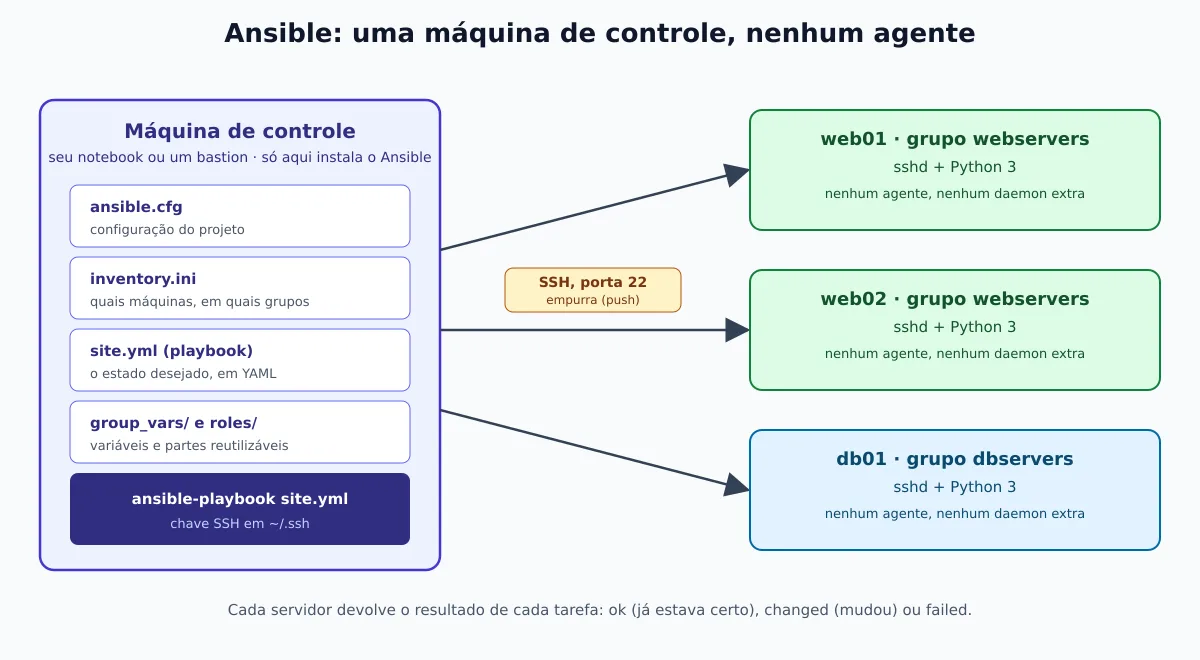
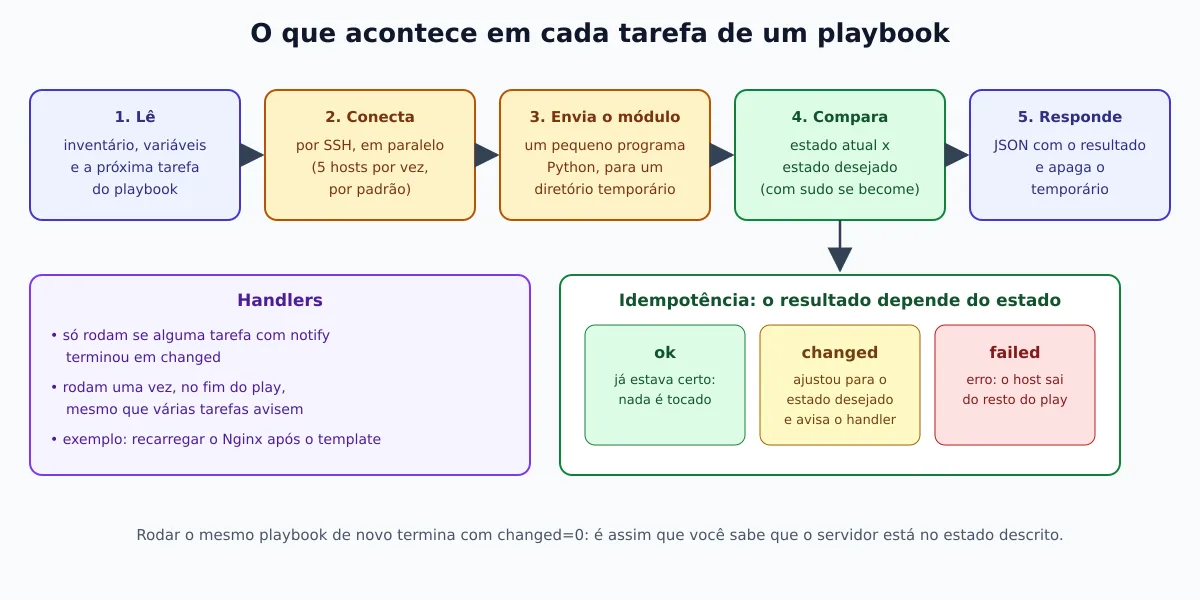
For each task, Ansible opens SSH on the servers in parallel (five at a time, by default), sends a small Python program, the module, executes it, receives the result in JSON, and deletes the temporary file. The module compares the current state with what you requested and only makes changes if necessary.
Installing on Ubuntu
There are three paths, and the difference is the version:
- Ubuntu repository: the simplest. In Ubuntu 24.04 it ships the package
ansible9.2, with ansible-core 2.16. It's for learning. - Official project PPA: current version. In September of 2026, the PPA ships
ansible14.4.0, with ansible-core 2.21.4, for Ubuntu 24.04 and 26.04. This is what we used in the tests. - pipx: isolates Ansible from the system Python and works on any distribution.
# Opção 1: repositório do Ubuntu
sudo apt update
sudo apt install -y ansible

# Opção 2: PPA oficial (versão atual)
sudo apt install -y software-properties-common
sudo add-apt-repository --yes --update ppa:ansible/ansible
sudo apt install -y ansible

# Opção 3: pipx
sudo apt install -y pipx
pipx install --include-deps ansible
pipx ensurepath   # abra um novo terminal depois deste comando
ansible --versionansible [core 2.21.4]
config file = /etc/ansible/ansible.cfg
...
python version = 3.12.3 (main, Aug 31 2026, 10:18:26) [GCC 13.3.0] (/usr/bin/python3)
jinja version = 3.1.2The structure of a project
Ansible runs from any directory, but it's worth adopting the conventional structure from day one:
meu-projeto/
├── ansible.cfg            # configuração do projeto
├── inventory.ini          # quais máquinas gerenciar
├── site.yml               # playbook principal
├── group_vars/            # variáveis por grupo de hosts
│   └── webservers.yml
├── host_vars/             # variáveis de um host específico
│   └── web01.yml
└── roles/                 # partes reutilizáveis
    └── nginx/
        ├── tasks/main.yml
        ├── handlers/main.yml
        ├── templates/
        ├── files/
└── defaults/main.yml- ansible.cfg: project configurations. Ansible uses the file from the current directory before the global one, in
/etc/ansible/ansible.cfg. - Inventory: the list of machines, organized into groups.
- Playbook: the playbook in YAML, “on these hosts, ensure these tasks.”.
- group_vars and host_vars: values that change per group or per machine, separated from the logic.
- Roles: playbooks packaged for reuse in other projects.
Inventory, SSH key, and the first ping
Create the project with three servers in two groups. Replace the IPs with yours:
mkdir meu-projeto && cd meu-projeto

cat > inventory.ini <<'EOF'
[webservers]
web01 ansible_host=192.168.64.2
web02 ansible_host=192.168.64.3

[dbservers]
db01 ansible_host=192.168.64.4

[all:vars]
ansible_user=ubuntu
ansible_python_interpreter=/usr/bin/python3
EOF

cat > ansible.cfg <<'EOF'
[defaults]
inventory = inventory.ini
EOF

ansible-inventory --graph
@all:
|--@ungrouped:
|--@webservers:
| |--web01
| |--web02
|--@dbservers:
| |--db01The line ansible_python_interpreter pins the Python used on the servers. Without it, ansible-core 2.21 works, but prints a warning on every host saying it used the “discovered” Python and that this may change if another Python is installed.
Ansible connects to the servers using your SSH key. If you don't have one yet, generate and copy it to each server:
ssh-keygen -t ed25519
for ip in 192.168.64.2 192.168.64.3 192.168.64.4; do ssh-copy-id ubuntu@$ip; done
The ssh-copy-id also asks you to confirm each server's key on the first connection. If you use another method to distribute the key, Ansible will stop with Host key verification failed, and that's a good thing: it's the protection against a rogue server. To register the keys all at once, without disabling the check:
ssh-keyscan -H 192.168.64.2 192.168.64.3 192.168.64.4 >> ~/.ssh/known_hostsVerify the keys if the server is not a lab machine. Many tutorials tell you to add host_key_checking = False in ansible.cfg; avoid it in production. And if you add any option, watch out for comments: in ansible.cfg, the # they are only valid at the beginning of the line. In our test, the line host_key_checking = True # comentário was read as False, because Ansible took the entire text as the value, didn't recognize it as true, and disabled the check without warning. A comment on the same line with only ;, or on its own line.
Now the communication test:
ansible all -m ansible.builtin.pingweb01 | SUCCESS => {
"changed": false,
"ping": "pong"
}
web02 | SUCCESS => { ... }
db01 | SUCCESS => { ... }The module ping isn't the network ping (ICMP): it confirms that Ansible gets in via SSH and runs Python on the other side, which is what matters. No server on hand? Everything works against the local machine with ansible localhost -m ansible.builtin.ping, which uses a local connection.
Ad-hoc commands
Before writing playbooks, a lot of things can be solved with one-off commands. -m picks the module, -a passes the arguments, and --become runs with sudo on the other side:
ansible all -a "uptime -p"                                     # comando em todos
ansible webservers -m ansible.builtin.apt \
  -a "name=htop state=present update_cache=true" --become      # instala pacote
ansible db01 -m ansible.builtin.setup -a "filter=ansible_distribution*"   # fatos
ansible-doc ansible.builtin.apt                                # documentação do módulo
Run the command from htop twice. The first time, the hosts appear as CHANGED; the second time, as SUCCESS, because the package was already there. If your user prompts for a password on sudo, add -K (--ask-become-passfor Ansible to ask. And prefer the specific modules over shell: the apt knows how to tell if something changed, and a loose command does not know.
The First Playbook
Now a complete script: install Nginx on the web servers, publish a page generated from a template with a variable, keep the service active and reload it only when the page changes. First the group variable, in group_vars/webservers.yml:
---
site_titulo: "Servidor gerenciado pelo Ansible"
The template, in templates/index.html.j2, uses Jinja2 syntax. inventory_hostname and ansible_facts are filled in by Ansible itself:
<!doctype html>
<html lang="pt-br">
<head><meta charset="utf-8"><title>{{ site_titulo }}</title></head>
<body>
  <h1>{{ site_titulo }}</h1>
  <p>Host: {{ inventory_hostname }} ({{ ansible_facts["distribution"] }} {{ ansible_facts["distribution_version"] }})</p>
</body>
</html>
And the playbook, site.yml:
---
- name: Configurar servidores web
  hosts: webservers
  become: true

  tasks:
    - name: Instalar o Nginx
      ansible.builtin.apt:
        name: nginx
        state: present
        update_cache: true
        cache_valid_time: 3600

    - name: Publicar a página inicial
      ansible.builtin.template:
        src: templates/index.html.j2
        dest: /var/www/html/index.html
        owner: root
        group: root
        mode: "0644"
      notify: Recarregar o Nginx

    - name: Garantir o Nginx ativo e habilitado no boot
      ansible.builtin.service:
        name: nginx
        state: started
        enabled: true

  handlers:
    - name: Recarregar o Nginx
      ansible.builtin.service:
        name: nginx
        state: reloaded
The module names appear in full, like ansible.builtin.apt. It is the recommended format since Ansible 2.10: it makes clear which collection each module comes from. The cache_valid_time avoids running apt update again if it was done within the last hour.
ansible-playbook site.yml --syntax-check
ansible-playbook site.yml
TASK [Instalar o Nginx] ********************************************************
changed: [web01]
changed: [web02]
TASK [Publicar a página inicial] ***********************************************
changed: [web01]
changed: [web02]
TASK [Garantir o Nginx ativo e habilitado no boot] *****************************
changed: [web02]
changed: [web01]
RUNNING HANDLER [Recarregar o Nginx] *******************************************
changed: [web02]
changed: [web01]
PLAY RECAP *********************************************************************
web01 : ok=5 changed=4 unreachable=0 failed=0 skipped=0 ...
web02 : ok=5 changed=4 unreachable=0 failed=0 skipped=0 ...Idempotency: run it again
Run the same command once more and look at the summary:
web01                      : ok=4    changed=0    unreachable=0    failed=0 ...
web02 : ok=4 changed=0 unreachable=0 failed=0 ...changed=0. This is the idempotency, the heart of Ansible: it doesn't “execute commands”, it guarantees states. Nginx was already installed, the page was already the right one, the service was already active, and nothing was touched. The handler also didn't run, because no task changed.
Simulate before applying: --check and --diff
Change the title in group_vars/webservers.yml to “LinuxPro web server” and simulate, only in the web01:
ansible-playbook site.yml --check --diff --limit web01TASK [Publicar a página inicial] ***********************************************
--- before: /var/www/html/index.html
+++ after: /root/.ansible/tmp/ansible-local-586tfwktpl6/tmp5owga2ot/index.html.j2
@@ -1,8 +1,8 @@
<!doctype html>
<html lang="pt-br">
-<head><meta charset="utf-8"><title>Servidor gerenciado pelo Ansible</title></head>
+<head><meta charset="utf-8"><title>Servidor web do LinuxPro</title></head>
<body>
- <h1>Servidor gerenciado pelo Ansible</h1>
+ <h1>Servidor web do LinuxPro</h1>
<p>Host: web01 (Ubuntu 24.04)</p>
</body>
</html>
changed: [web01]The --check doesn't change anything, and the --diff shows exactly what would change. Applying for real, only the page and the handler show up as changed, and Nginx is reloaded a single time.
Two limits of the --check, Seen in the tests:
- On a clean server, it may fail in the middle. In the simulation, Nginx is not actually installed, so the next task, the one for the service, ends with
Could not find the requested service nginx. This is expected: the simulation is more useful for reviewing changes on servers that are already configured. - The module
aptneeds the packagepython3-aptto simulate. Ubuntu Server already includes it; minimal images, such as those for containers, do not, and the error readspython3-apt must be installed to use check mode. In a normal run, the module installs the package itself.
Turning the playbook into a role
When the playbook grows, the tasks become a role, which can be used in any project:
ansible-galaxy role init roles/nginxThe command creates the structure in roles/nginx/. Move the tasks to roles/nginx/tasks/main.yml, the handler to roles/nginx/handlers/main.yml and the template to roles/nginx/templates/. Inside the role, the src of the template becomes only index.html.j2, because Ansible looks in the templates/ folder of the role itself. The site.yml becomes short:
---
- name: Configurar servidores web
  hosts: webservers
  become: true
  roles:
    - nginx
Running it again, the tasks appear with the role prefix (nginx : Instalar o Nginx) and the result remains changed=0: what changed was the organization, not the state of the servers.
Next Steps
With this foundation, the natural next steps are:
- Continuation: in Linux users with Ansible: SSH keys, sudo and history in Git, the project goes to Git and starts creating, blocking, and removing accounts, with SSH key login without password and sudo access. The full code, tested on Ubuntu 24.04 and Debian 13, is in the repository jniltinho/ansible-linux-users.
- Move on to a real-world scenario: the guide Automating Linux servers with Ansible shows firewall, secrets with
ansible-vaultand rolling updates. - Explore the modules in official documentation or with
ansible-doc -l. - Career: if automation becomes a profession, Ansible is a central piece of the LPI DevOps Tools Engineer certification.
Install, ping, run the playbook twice and see the changed=0: at this point it becomes clear why so many people stopped configuring servers by hand.